Scan Shot: PDF & Photo Scanner
- 4.4
- Rating
- 1.00M
- Installs
- Free
- Price

 Analysis by App-foxy
When I need to turn a paper into a usable digital file, I want more than a camera pointed at a page. I want the result to be readable, easy to share, and flexible enough for signatures or later conversion. That is the space where Scan Shot: PDF & Photo Scanner makes sense. I tested it as a productivity app from KAERMORHEN, S.L., and found it most useful for people who regularly move between paper documents, photographs, and PDF files.
The app is free to install and suitable for Everyone, which makes it approachable for family use, schoolwork, home administration, and small-business paperwork. Its current version is 2.10.0.10221, and it runs on Android 8.0 or later. The public response is also encouraging: it holds a 4.4 average from around 127 thousand ratings, with over 1 million installs. Those figures do not replace personal testing, but they do suggest that this is an established tool rather than an obscure experiment.
What I considered before recommending it
Before I recommend a document app, I look beyond whether it can capture a page and consider how reliably it fits into the work that follows. I focus on the handoffs—checking the scan, choosing a useful format, and finishing the document—because that is where a convenient tool can either save time or create extra steps. Those priorities also shape how I compare it with the alternatives.
You May Also Like

 AccuWeather: Weather Radar
AccuWeather Review: A Quick, Clear Forecast for Everyday Decisions
For everyday plans, the best forecast is the one you can understand quickly. AccuWeather makes rain timing, radar, and local conditions easy to act on, with a few trade-offs.

 Hill Climb Racing
Why Hill Climb Racing Still Turns Crashes Into One More Run
A tiny car, a bumpy hill and one more upgrade: Hill Climb Racing keeps resurfacing because its simple chaos makes every near-miss feel personal.

 AliExpress - Shopping App
AliExpress Makes Global Shopping Feel Personal, but Shoppers Bear the Risk
AliExpress turns a global marketplace into a pocket-sized discovery engine. Its reach is useful, its shopping loop compelling, and its trade-offs easy to miss.

 Lords Mobile: Kingdom Wars
Lords Mobile Is a Kingdom-Building Routine, Not a Quick Match
A case-by-case verdict on the building, battles, device demands, and social commitments that make Lords Mobile rewarding for some players and exhausting for others.

 PDF Scanner app - TapScanner
TapScanner Makes Paperwork Easier to Capture, Check, and Share
TapScanner makes scanning with a phone feel less like a rescue operation and more like a dependable step in getting work done. Its capture tools are useful, though not flawless.

 Block Blast!
 Shows How Much a Puzzle Game Can Leave Out
A quiet grid game shows why puzzle players increasingly value instant clarity, repeatable skill and low-pressure play—and where the genre still needs to catch up.
More From Our News Desk
View All News


The real question is the workflow, not the camera
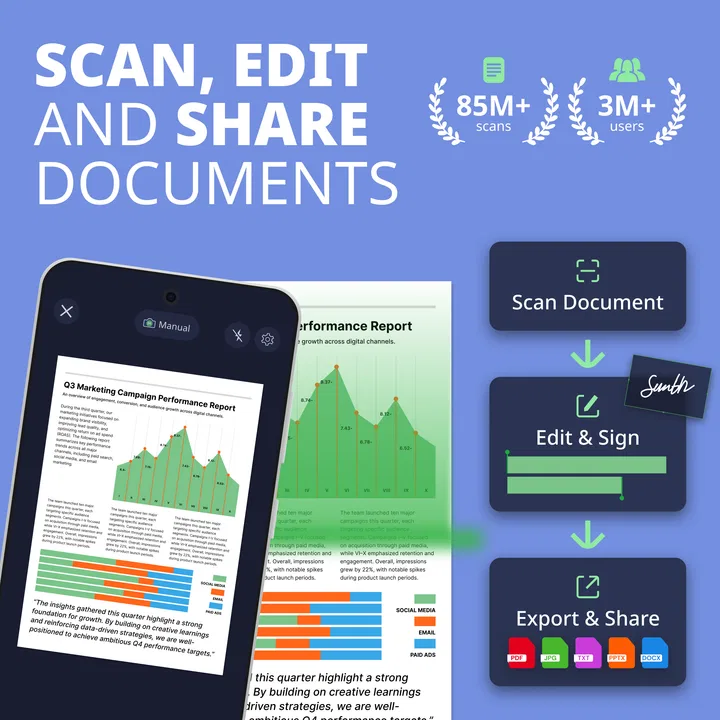
Most scanner apps can capture a page. The more important question is what happens immediately afterward. Can I correct the framing without starting again? Can I keep several pages together? Can I produce a PDF instead of a loose image? Can I sign something without moving to a separate application? Scan Shot is designed around that broader sequence, combining document scanning, electronic signing, file and image conversion, and PDF creation in one place.
That combination changes who will appreciate it. If you only photograph a receipt once a month, the default camera may be enough. If you collect invoices, forms, handwritten notes, identity documents, or school papers, a dedicated scanner app is easier to justify. I found the strongest reason to use this one was reducing the number of small handoffs between capture, editing, signing, and saving.
How I judge a scanner app in everyday use
I pay attention to four things: capture reliability, correction controls, document organization, and the final handoff. A page that looks fine in the preview but becomes difficult to read after export is a failure. A beautiful scan that takes too many taps to share is also a poor result. Scan Shot feels aimed at practical completion rather than at turning scanning into a hobby.
The app is particularly relevant when the source is imperfect. A page may be slightly angled on a kitchen table, a photograph may have a distracting border, or a form may need a signature before it can be returned. In those situations, the value is not simply taking a picture; it is making the picture behave more like a document.
A realistic use case: handling a form away from the office
Imagine receiving a paper form that must be returned the same day. I would capture each page, check that the edges are included, combine the pages into one document, add the required signature, and send the finished PDF from the phone. That workflow is much more convenient than photographing every page separately, opening a general image editor, searching for a signing tool, and then trying to assemble everything afterward.
There is also a useful household scenario. I might scan a warranty, convert a photograph of a purchase receipt into a PDF, and keep the paperwork together before storing it in cloud storage or sending it to a family member. The advantage is not that any one step is revolutionary; it is that the steps live in the same productivity-oriented tool.
Where Scan Shot wins over a basic camera
The clearest advantage over the regular camera app is intent. A camera treats a document as an image. Scan Shot treats it as something I may need to correct, sign, convert, and share. That difference matters when I am working with multiple pages or when the recipient expects a PDF rather than a gallery photo.
I also prefer a dedicated scanner for paperwork because it encourages a quick quality check before I move on. With ordinary camera shots, it is easy to discover later that a corner was cut off or that glare covered a line of text. A document-focused workflow makes reviewing the capture part of the process instead of an afterthought.
Why the all-in-one approach is useful
The signing function is one of the more practical parts of the package. For a form that only needs a straightforward electronic signature, staying inside the same app can save time. I do not have to export the scan, locate it in another application, sign it, and then find the signed copy again.
Conversion is useful for a different reason. People often have documents trapped in the wrong format: an image that needs to become a PDF, or a group of images that should be handled as one file. Having conversion alongside scanning makes the app more useful after the camera step. The strongest feature is the connected workflow from paper capture to a shareable document.
Tips that make the results more dependable
My first tip is to prepare the surface before scanning. A contrasting, uncluttered background makes the page boundary easier to judge, while strong reflections can make even a good capture look poor. I also check the entire page at readable size before adding another page. It is much faster to rescan immediately than to discover a missing line after signing.
My second tip is to decide the final format before building a large batch. If the recipient needs one PDF, I would keep related pages together rather than creating separate files and merging them later. This is especially helpful for applications, invoices, and multi-page forms where page order matters.
My third tip is to treat signatures as the last content check, not the first. I would confirm that every page is present, that the text is legible, and that the document is oriented correctly before signing. A signature added to an incomplete or badly framed file creates extra work and can make the process feel less convenient than it should.
What may frustrate you
Scan Shot is not a replacement for a physical scanner in every situation. A flatbed scanner remains preferable for delicate originals, high-volume office work, or situations where consistent optical quality is essential. Phone scanning also depends on lighting, camera focus, and how steadily the device is held. The app can improve a capture, but it cannot recover text that was never recorded clearly.
The all-in-one design can also feel broader than necessary. If I only want a fast photo of a receipt, the extra document-oriented steps may seem like overhead. Likewise, someone who already has a trusted signing and PDF workflow may not gain much by changing tools. The app is most convincing when several tasks are needed together, not when one tiny task is all I have.
How it compares with the alternatives
I weigh Scan Shot against tools that solve different parts of the same job, from a phone’s camera to a dedicated PDF editor or separate scanning and signing apps. The best choice depends on whether your work starts with paper, an existing digital file, or just a quick visual reminder. I’ll explain where an integrated workflow earns its place and when a simpler or more specialized option makes better sense.
Against the built-in camera
The built-in camera wins for speed when quality requirements are low. It opens quickly, requires no change in habits, and works well for temporary reference images. Scan Shot wins when the image must become a clean document, when several pages belong together, or when signing and conversion are part of the same job.
I would choose the camera for a quick picture of a notice I only need to read later. I would choose Scan Shot for paperwork that I expect to send, archive, or revisit. That distinction prevents disappointment: the dedicated app is not automatically better for every photograph, but it is better aligned with documents that have a destination.
Against a dedicated PDF editor
A specialized PDF editor may be the better choice for people who spend their day manipulating existing PDFs. Such users may need extensive editing, detailed annotation, or a mature document-management routine. Scan Shot is more natural at the front of the process, when the source begins as paper or an image and needs to become a usable PDF.
In my view, the choice depends on where the work starts. If the file already exists and needs complex revision, a dedicated editor may fit better. If I am starting with a page on a desk and need to capture, sign, convert, and send it, Scan Shot has the more direct path.
Against separate scanner and signing apps
Using separate applications can offer deeper specialization, but it introduces a cost that is easy to underestimate: switching. I have to remember where the original scan was saved, preserve page order, export in a compatible format, and locate the signed result afterward. That arrangement can be perfectly workable for experienced users, yet it creates more opportunities for duplicate files and unfinished steps.
Scan Shot does not eliminate every decision, but it reduces the number of places where the workflow can break. That is its main category-level advantage. I would not select it simply because it contains many tools; I would select it because those tools address consecutive stages of the same document task.
Who should skip it
I would skip it if my needs are limited to occasional snapshots, if I already rely on a physical scanner, or if my organization requires a highly specialized document system. People who handle confidential business records should also evaluate any app according to their own workplace rules before moving documents through it. The convenience of a phone workflow should not override a requirement for a particular approved process.
I would also hesitate if I dislike subscription-style or paid upgrade prompts in free productivity apps. Scan Shot is free, but in-app purchases range from $6.99 to $49.99 per item. That does not automatically make it poor value, but it means I would review the available upgrade choices carefully and decide whether the free experience covers my normal workload before depending on it.
The cost of changing your routine
Switching to Scan Shot is easy when I am replacing a camera-only habit, because the app adds structure without requiring a separate desktop setup. The bigger adjustment is learning to review pages, group related captures, and think about the final PDF before sending anything. Those habits take a little attention, but they prevent the most common errors in mobile document work.
Switching away from another scanner app can be more complicated. Existing files, naming conventions, and signing habits may not move neatly with you. I would test the app on a small document set first, especially if I have a large archive or a routine built around another editor. The right question is not whether Scan Shot has enough tools in theory; it is whether its sequence matches the way I actually process paperwork.
Version, access, and practical expectations
The app is available as a free productivity download, carries an Everyone age rating, and supports Android 8.0 or newer. That broad compatibility makes it suitable for many older phones as well as current devices. Still, the phone itself matters: a newer camera and better lighting will usually contribute more to scan quality than changing between similar apps.
I would keep the latest available version installed, currently 2.10.0.10221, because document tools can depend on stable handling of camera capture and file conversion. I would also leave room to inspect the finished file before sharing it. A quick visual check remains important regardless of the app used.
My recommendation for different kinds of users
For students, renters, parents, and freelancers, I think Scan Shot is a sensible choice when paperwork appears often enough to be annoying but not often enough to justify dedicated equipment. The signing and PDF workflow are particularly helpful for forms that arrive on paper and need to leave as digital files.
For a small business, it can be a convenient mobile companion for occasional invoices, receipts, and signed documents. I would be more cautious about making it the sole system for a large document operation, where consistent scanning hardware, formal storage rules, and specialized editing may matter more than convenience.
For casual users, the decision is simple: install it if you regularly need a document rather than just a photo. If you only capture visual reminders, the built-in camera may remain the faster option. The app earns its place when conversion, multi-page handling, and signing happen close together.
My final view
After using Scan Shot: PDF & Photo Scanner, I see it as a practical bridge between paper and digital work. It does not make a phone equal to a professional scanner, and it is not the ideal replacement for a full PDF editor. Its appeal comes from bringing several ordinary but connected tasks into one workflow.
I recommend it to anyone who wants to scan a document, turn it into a PDF, add an electronic signature, or convert an existing image without constantly jumping between apps. The free entry point makes it easy to try, while the in-app purchase range means I would check the upgrade terms against my own usage before committing to a paid workflow.
My honest recommendation is to test it with one realistic job: a multi-page form, a receipt that needs archiving, or a document that must be signed and returned. If that process feels cleaner than your current camera-plus-editor routine, Scan Shot is doing exactly what it should. If your needs are occasional snapshots or advanced PDF production, a simpler or more specialized alternative may serve you better.
FAQs for Scan Shot: PDF & Photo Scanner
01What is Scan Shot: PDF & Photo Scanner used for?
Scan Shot: PDF & Photo Scanner turns your Android or iOS device into a portable document scanner. During testing, it was useful for capturing receipts, contracts, notes, forms, IDs, and printed photos with the phone camera. The app detects document edges, improves contrast, and lets you save scans as digital files that are easier to store, share, or print.
02Does Scan Shot produce clear and accurate document scans?
Scan quality depends largely on lighting, camera resolution, and how steadily the phone is held, but Scan Shot generally produces readable results for everyday paperwork. Its automatic edge detection and image enhancement can correct perspective and improve contrast. For the best outcome, place the document on a flat surface, avoid shadows, and review the corners before saving the scan.
03Can I create and share PDF files with Scan Shot?
Yes, one of the app’s main purposes is combining scanned pages into PDF documents. After capturing pages, you can usually rearrange, rotate, crop, or enhance them before exporting. This makes it practical for submitting forms, emailing paperwork, or keeping several pages together. Available export and sharing options may vary depending on the device and app version.
04Is Scan Shot free to download and use?
Scan Shot can generally be downloaded without an upfront charge, but users should check the current store listing carefully because some features may require a subscription, one-time purchase, or in-app payment. Premium access can affect options such as unlimited scans, advanced editing, cloud services, or removing advertisements. Review the trial terms and renewal conditions before confirming payment.
05Does Scan Shot protect my scanned documents and personal information?
Because scanning documents may involve sensitive information, privacy is an important consideration before using Scan Shot. Check the app’s current privacy policy and permissions in the Google Play Store or Apple App Store to understand how images, documents, analytics, and account data are handled. Avoid scanning highly confidential material until you are comfortable with its storage, sharing, and deletion practices.
Pros
- Quickly turns photos and documents into clear PDF files.
- Automatic edge detection helps crop pages accurately.
- Supports multi-page scans in a single document.
- OCR makes printed text searchable and easier to copy.
- Useful tools for rotating
- enhancing
- and organizing scans.
Cons
- Some advanced features may require a paid subscription.
- OCR accuracy can drop with handwriting or poor lighting.
- Large scans may use considerable device storage.
- Cloud sharing depends on having compatible apps installed.
- Occasional processing delays occur with high-resolution documents.

Scan Shot: PDF & Photo Scanner
Gallery